|
Setting Up Your AI SystemsSetting Up External Cloud Services (OpenAI & Gemini)Using the External Cloud Service mode for AI Analysis requires the use of an API key for OpenAI and/or Gemini. If you don’t already have a key, you can sign up at openai.com or aistudio.google.com.Once you have an API key(s) available, you’ll need to copy the key(s) into specific files in the Imagix 4D installation. To enable the external cloud services for OpenAI and Gemini, Imagix 4D looks for files named AIKey_OpenAI_GPT and AIKey_Google_Gemini, respectively. Imagix 4D first checks the directory <imagix installation>/user/ai_keys from where the current session where Imagix 4D is being run. In floating license installations of Imagix 4D, the directory <imagix license server installation>/data on the license server machine serves as a backup location for any clients that either don’t have their own AIKey_xxx files installed or whose AIKey_xxx files are not valid. The format of the key files is shown in the files AIKey_Google_Gemini.sample and AIKey_OpenAI_GPT.sample in <imagix installation>/user/ai_keys. Insert the API key you receive from the external cloud service account. The sample files include the names of models that we have found useful for program analysis. You can specify different model names if you prefer other models targeting programming at the external cloud service sites.
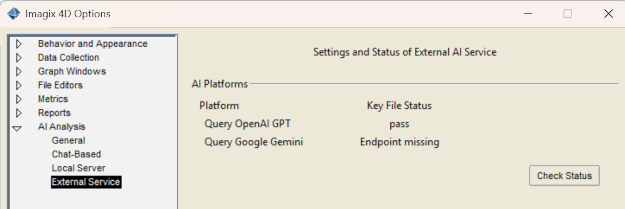
Once you have the new keys in place, you can check the status of the keys through the External Services section of the Options dialog (File > Options… > AI Analysis > External Services) via the main Imagix 4D menubar. Setting Up Local AI ServersThe Imagix Local AI Server engine is included in the Imagix 4D installation. However, the models for local AI analysis need to be downloaded separately. There are several models we recommend. Descriptions of these models, and links for downloading them, are available at www.imagix.com/download/ai_models.html. In addition, you may decide to install your own selection of GGUF format models.Running as Imagix 4D SubprocessIf you choose to run the local AI analysis as a subprocess of the Imagix 4D session on the same system, install the downloaded models into your Imagix 4D installation, in the directory <imagix installation>/user/ai_models. Once you've done that, no further setup is needed. Imagix 4D will automatically start up the AI server and keep it running as long as the Imagix 4D session runs.
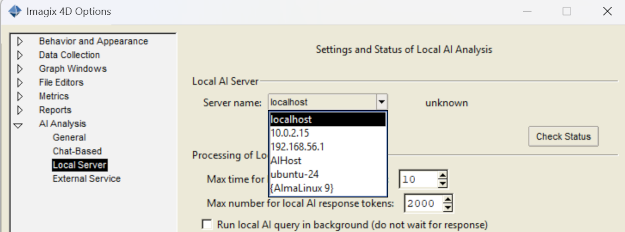
Running as Standalone AI ServerIf you want to establish the local Imagix AI server either on a specific system in your network or on a cloud-based host, you need to install that server, certify connection between Imagix 4D and that server, and start that server. The following instructions will refer to that server as Imagix AI Server.Install Imagix AI ServerAgain, the Imagix AI Server engine is included in the Imagix 4D installation. Copy the Imagix 4D installer to the system you have chosen for running Imagix AI Server. There, do a normal install as you would for Imagix 4D. Ignore the step of installing the Imagix 4D license, this installation is going to become the Imagix AI Server. Move the GGUF models you downloaded through www.imagix.com or elsewhere into the directory <imagix ai server installation>/user/ai_models.Certify ConnectionTo establish the Imagix AI Server you are installing as one of the choices of local AI servers for Imagix 4D client installations on your network, you need to create connection certificates for the server and the clients. These certificates are generated by running the 'imgxaisrv -gencert' command on either the Imagix AI Server or on an Imagix 4D client. Under Windows, you need to have administrator permissions in order to write the certificates under the 'c:\program files\' area of your system. Here is the full command to run:<either installation>/bin/imgxaisrv -gencert <server host name or IP>The command places the files <server host name or IP>-server.pem and <server host name or IP>-ca.pem into the directory <either installation>/user/ai_keys. Copy these certificates as necessary so that a copy of <server host name or IP>-server.pem resides in <imagix ai server installation>/user/ai_keys, and so that a copy of <server host name or IP>-ca.pem resides in <imagix installation>/user/ai_keys for each of the Imagix 4D clients. In the Imagix 4D client installations, these certificates are used to establish the list the choices of local AI servers. Select a specific server through the Local Server section of the Options dialog, (File > Options… > AI Analysis > Local Server).
Localhost always shows up as an option. It starts the AI analysis on the current system as described above. When selecting a server, the Check Status button shows if the connection is possible. The server needs to be running for the status to pass. Start Imagix AI ServerTo start an AI server on a host, use an administrator command shell on that server and execute the following command:<imagix ai server installation>/bin/imgxaisrv -host ?<server host name or IP>? &If the certificate for Imagix AI Server has used the hostname then -host is sufficient. If IP is used then <server host name or IP> from the certificate generation should be used. For Windows, you can install Imagix AI Server as a Windows service. This keeps the AI server running across system reboots and independent of the command windows it is started from. To install as a Windows service, use this command: <imagix ai server installation>/bin/imgxaisrv -install ?-host <server host name or IP>?If -host was not specified then the server hostname is used. Follow up with the command to start the Window service: sc start "Imagix AI Server" NotesThe Imagix 4D GUI remembers the local AI server selection across sessions. You can also preset the local AI server selection through the user/user.4Ddefaults file via an entry:uigControl(AIServer) <server host name or IP> Any error or informational messages from Imagix AI Server are recorded in its log file, named imgxaisrv.log. The location of the log file can be:
Local AI servers collect context through the queries they receive while running. This can improve the responses but also lead to context overflow or extended runtime. Through the Local menu on the AI Analysis window, you can:
|