|
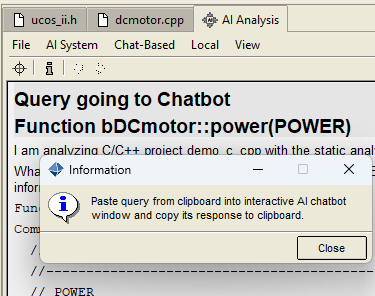
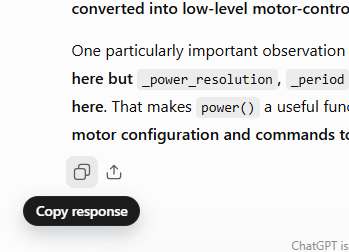
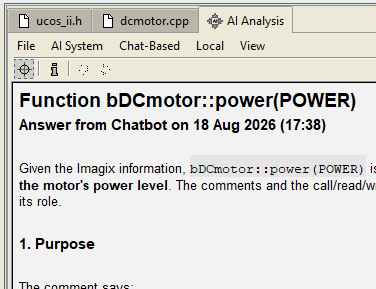
Operational Workflow inside the AI Analysis WindowWhen a query is launched through an AI Analysis menu item, the dedicated AI Analysis window automatically instantiates the query, recording the newly generated query as the first part of a new analysis. Beyond that, the workflow process depends upon which AI system you currently have selected as active.For Direct APIs (External Cloud Service or Local AI Server modes)For the API modes, the workflow is fully automated. Once 'AI Analysis' has been clicked on a menu, you will observe a progression through these states.Pending State: The window is initially populated with an indication of the target AI system (e.g., "Query going to Gemini"), followed by a clear layout of the exact context query being transmitted to the AI engine. Response State: Once the AI engine finishes its calculation and returns its response, the interface clears the pending message and populates the answer, formatting that response in standard AI chatbot markdown appearance, organized into meaningful subheadings. This answer is automatically added to the analysis recorded for the query. Error Diagnostics: If an interruption occurs (such as an expired API key, network timeout, or a local server memory overload), the window switches to a diagnostic state, printing explicit troubleshooting error strings to help you trace the failure. For Chat-Based modeIf you have selected AI Chatbot (Any) as your AI System, you will be using copy/paste for your interactions with a chatbot of your choosing. This is a semi-automated process. When you click on AI Analysis in a menu, the query that is then created is automatically copied to your clipboard. Following that:
Soon after, the chatbot returns its answer. At that point, you may choose to stop interaction with Imagix 4D, and simply review the answer within the chatbot itself. However, as you will see in the Persistence section below, there are reasons to go on to the next step.
If you accidentally copy different contents on the clipboard, if you’ve disabled clipboard monitoring for security reasons, or if a message appears in the AI Analysis window indicating that you've taken too long to copy the answer, the UI features a dedicated AI Paste button on the icon toolbar for manual import. Analysis Persistence and RecallEvery AI analysis you run is automatically saved directly into your local Imagix 4D project database. When your query is made using any of the direct API AI systems (External Cloud Service or Local AI Server), the stored analysis automatically includes the reported answer. For chat-based mode queries, a manual step is required to import the answer back from the chatbot; once you’ve done so, it too is stored as part of the analysis.The benefit of the storing analyses is that valuable insights are maintained and you avoid spending API tokens regenerating the same architectural explanations. You’re able to recall the results of historical analyses at any time from inside the AI Analysis window. The Existing AI Analyses dialog, as well as the Previous and Next navigation choices, available through the window's local View menu, allow you to access and manage the analytical history of queries and answers from across multiple sessions.
|